
Whatsapp-editor
What´s different?
The tree structure of the Template Editor was reconfigured. At this point, there are three main directories („Omnichannel”, „SMS” and „WhatsApp”). Each of them can contain two folders („Messages” and „Template Messages”).
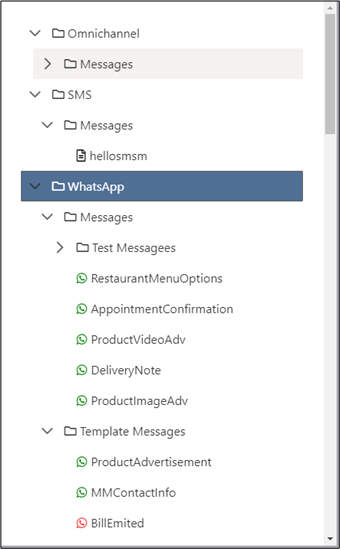
· Omnichannel
o Messages: this directory contains the folder structure and all the templates and messages that were created until this reconfiguration
· SMS
o Messages: here there are all the SMS messages that the user can create. It is not used at this point
o Messages: Inside this directory, the user has the option to create Interactive Messages. The user can also define his own folder structure under this directory
o Template Messages: Under this directory, the user can define his Template Messages, and create his own folder structure
What´s new?
The newly added features are represented by the editor components for WhatsApp Messages and WhatsApp Template Messages. The editor component has the following sections:

Name field for Interactive Messages

or Category/Language for Templates

A control for configuring which message blocks to use (header/body/footer/buttons). Some options might be disabled, due to the type of the message (e.g. Reply Button messages have the “Buttons” section mandatory, you cannot uncheck it)
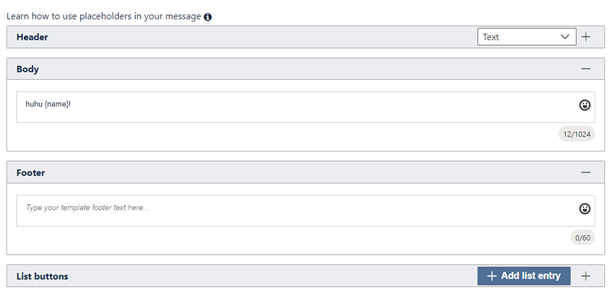
Each of the selected sections, displayed in collapsible panels.
Placeholders
Placeholders are defined in a text using curly brackets {}, and the placeholder name inside.
Example: „Hi {customerName}!”
WhatsApp Interactive Messages Editor
This editor is designed for creating, editing and deleting Interactive WhatsApp Messages.
Under the WhatsApp -> Messages sections, the user can create Text messages, Media messages, Reply Button Messages and List Button Messages.
Message type can be selected in the Create Message dialog.
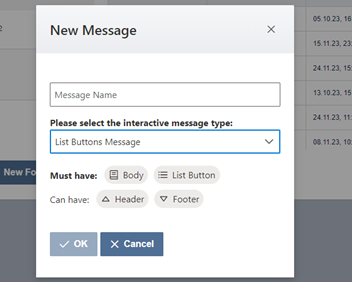
Text Messages: Messages including only a text section, containing emojis, and a maximum of 4069 characters.
It can contain any number of placeholders
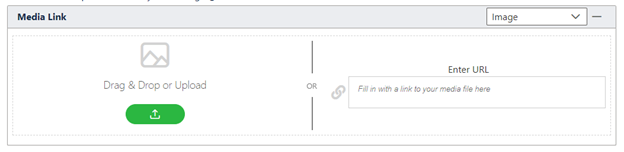
Media Messages: Messages containing of an Image, Video, Audio or Document file, together with an optional caption
• The used file size is limited to 100 MB, while the caption may contain emojis and a maximum of 1024 characters
• The user can use the Drag&Drop area or the Upload button to select a file from his system. There is also the possibility to use a URL that points to the file the user wants to use.
It can contain any number of placeholders
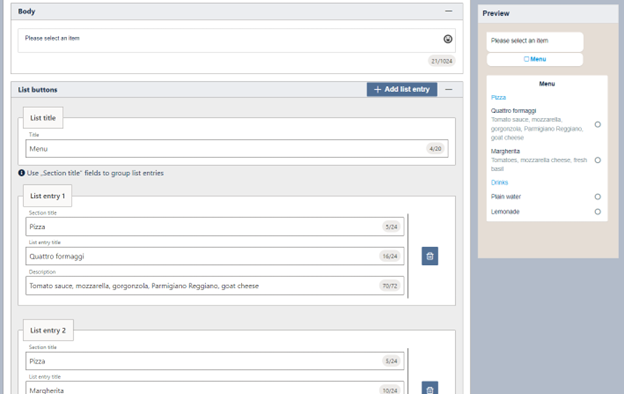
How to create List Messages
List Messages:
Placeholders usage:
Values can be filled in in the Save dialog
· Header: 1 placeholder
· Body: no restriction
· Footer: cannot use placeholders
· Buttons: cannot use placeholders
Messages that include a menu of up to 10 options.
This type of message consists of 4 sections:
1. Header (optional): the user can select the header types:
· Text – maximum 60 characters
· Image/Video/Audio/Document – file can be uploaded from the system, or pointed to using a URL, same as for the Media messages control
2. Body (mandatory): text, maximum 1024 characters
3. Footer (optional): text, maximum 60 characters
4. Buttons (mandatory) – this section consist of a “List title” field, and up to 10 list entries. These entries can be grouped under different sections.
Each list entry has 3 fields:
· Section title: (optional when there is only one section) – this field can be used to group entries. All the entries that have the exact same section title will be automatically placed together under that section
· List entry title: (mandatory) – the name of the option
· Description: (optional) – description of the option
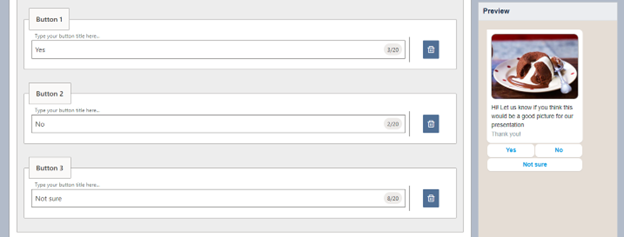
How to create Reply Button Messages
Reply Button Messages:
Placeholders usage:
Values can be filled in in the Save dialog
· Header: 1 placeholder
· Body: no restriction
· Footer: cannot use placeholders
· Buttons: cannot use placeholders
Messages including up to 3 options —each option is a button.
This type of message consists of 4 sections:
1. Header (optional): the user can select the header types:
• Text – maximum 60 characters
• Image/Video/Audio/Document – file can be uploaded from the system, or pointed to using a URL
2. Body (mandatory): text, maximum 1024 characters
3. Footer (optional): text, maximum 60 characters
4. Buttons (mandatory) – this section consist of maximum 3 Reply buttons. Each have a button title of max 20 characters.
Whatsapp templates editor
This editor is designed for creating, editing and deleting WhatsApp Template Messages.
Under the WhatsApp -> ‘Template Messages’ sections, the user can create new Templates
The Message Templates will be reviewed by WhatsApp to ensure they do not violate their policies. Once approved, they can be used, and their content cannot be edited.
Message template category — user can choose from 3 categories: UTILITY, AUTHENTICATION and MARKETING
Message template name — can only contain lowercase alphanumeric characters and underscores ( _ ). No other characters or white space are allowed
Message template language — currently multiple languages are not supported. The default is English
Placeholders usage:
Values can be filled in in the Approve dialog
· Header: 1 placeholder
· Body: no restriction
· Footer: cannot use placeholders
· Buttons: URL button can contain 1 placeholder at the end of the content
The Template Message consists of 4 sections:
1. Header (optional): the user can select the header types:
· Text
· Image/Video /Document – file can be uploaded from the system, or pointed to using a URL
2. Body (mandatory): text
3. Footer (optional): text, no emoji
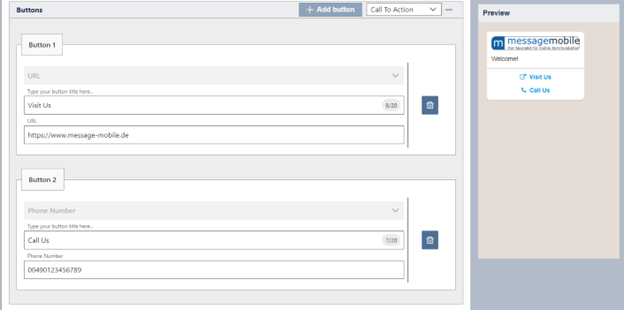
4. Buttons (optional)
· Reply Buttons - maximum 3 Reply buttons. Each have a button title of max 20 characters
· Call To Action buttons:
- URL button: button title, and URL
- Phone Number button: button title and phone number
A template can be in one of these statuses:
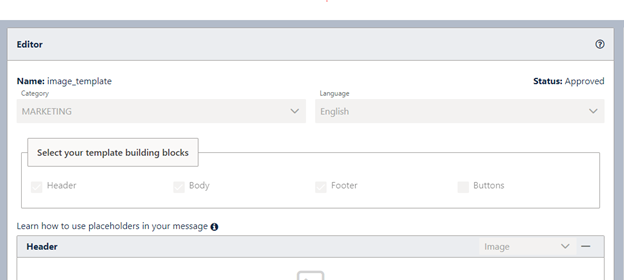
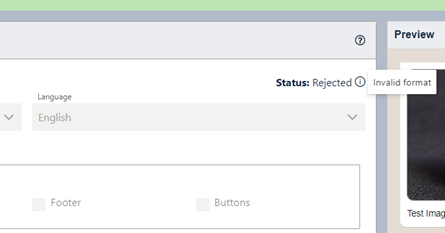
When a template is in status Rejected, the user can also see the reason, in a tooltip.
· DRAFT – when template is not yet submitted, is being edited and saved on our side
· PENDING – after template was submitted for WhatsApp approval
· APPROVED – after WhatsApp approved the template
· REJECTED – after WhatsApp rejected the template; Rejected templates can be duplicated, the clones can be edited, and submitted again for approval.
The status is visible in the top-right corner of the editor.